Updated December 4th 2025
QR codes are everywhere these days. They’re a quick way to share links to websites, forms or resources without typing long URLs, and particularly great for any paper leaflets and posters.
But did you know you can create them yourself in seconds? Here’s how... plus some important tips to keep you, your organisation and your communities safe.
How to create a QR code
You don’t need special software to make a QR code. Here are some easy options:
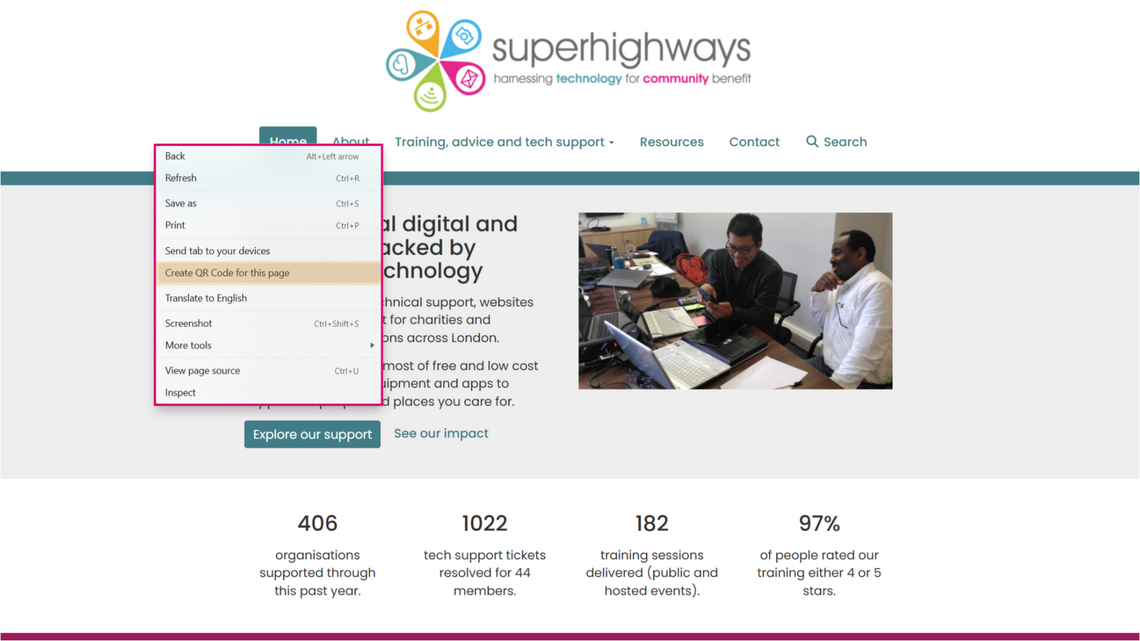
Right-click in your browser
In Microsoft Edge or Google Chrome, right-click on the page you want to share and select “Create QR code for this page.” Download the image and you’re ready to go.
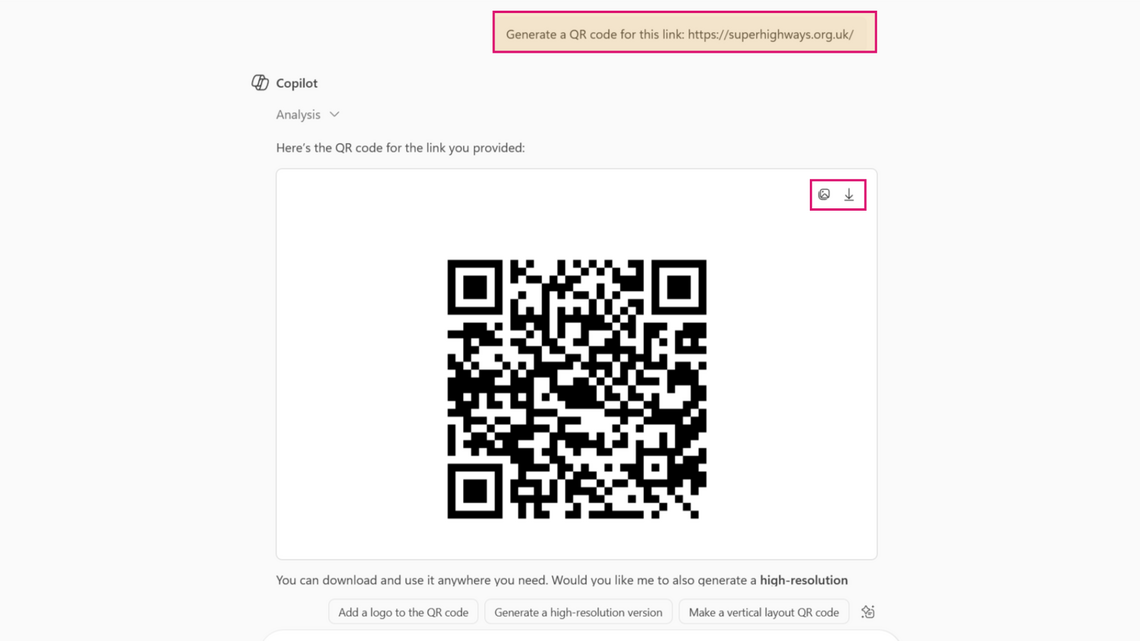
Microsoft 365 Copilot chat
If you use Microsoft 365, you can ask Copilot to generate a QR code for any link. Handy for documents, presentations, or emails.
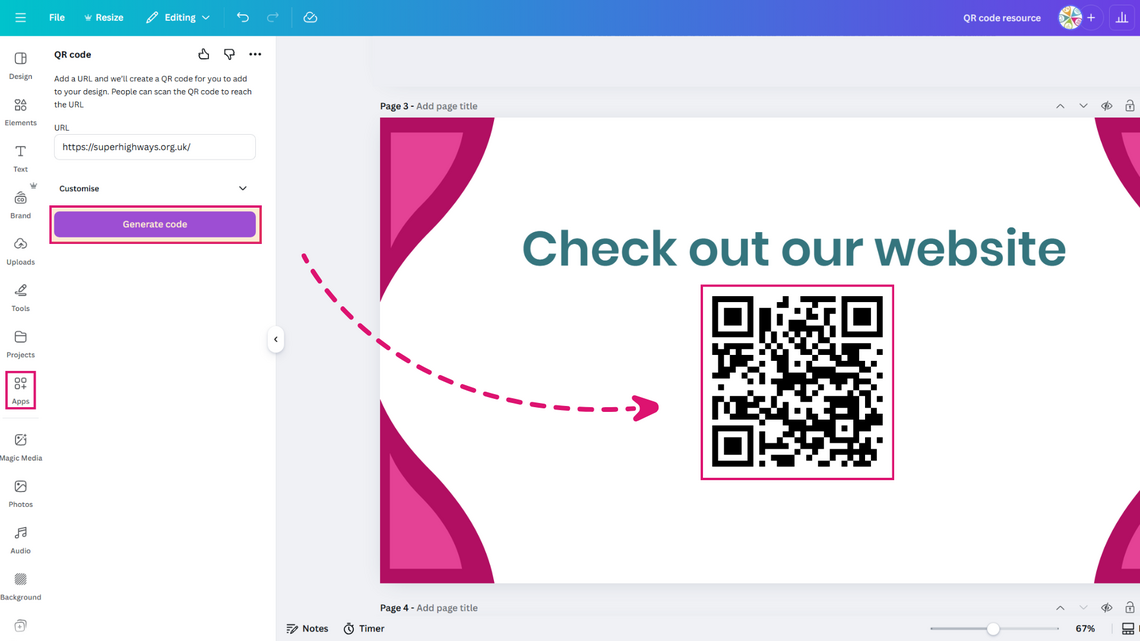
Canva
Canva has a built-in QR code generator. Great if you want a branded or styled code for posters or social media.
How to do it:
- Log in to Canva and start a design (poster, flyer, social post).
- Click Apps on the left menu and search for QR Code.
- Enter your URL and click Generate QR Code.
- Resize and customise your design with colours, text and logos.
- Download your finished design as PNG or PDF, or insert into another design you're working on.
Forms and surveys
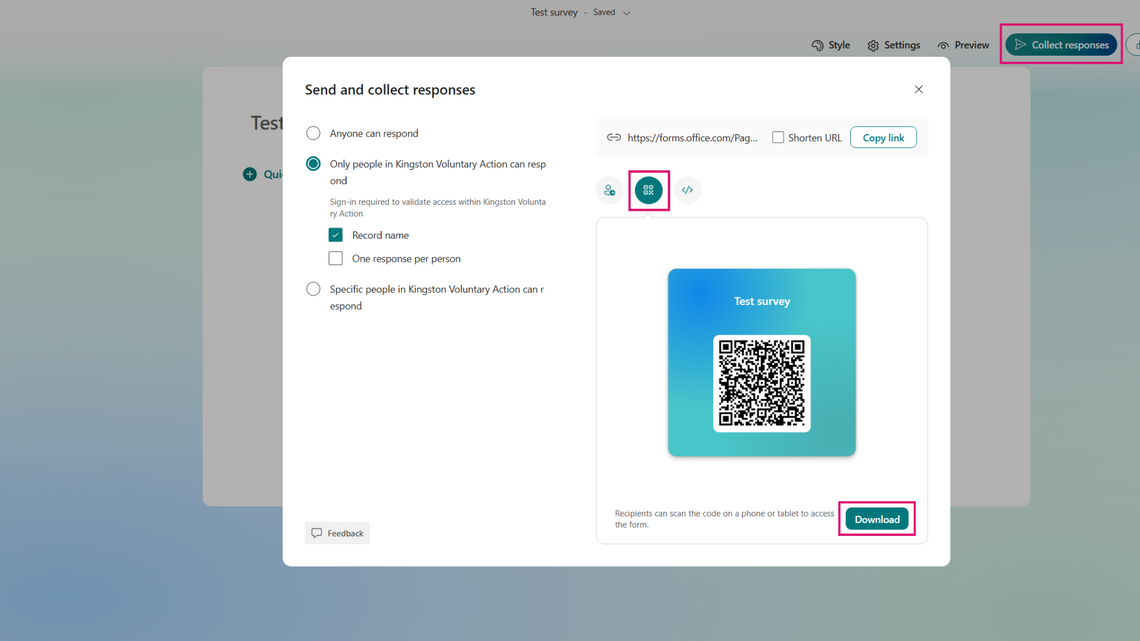
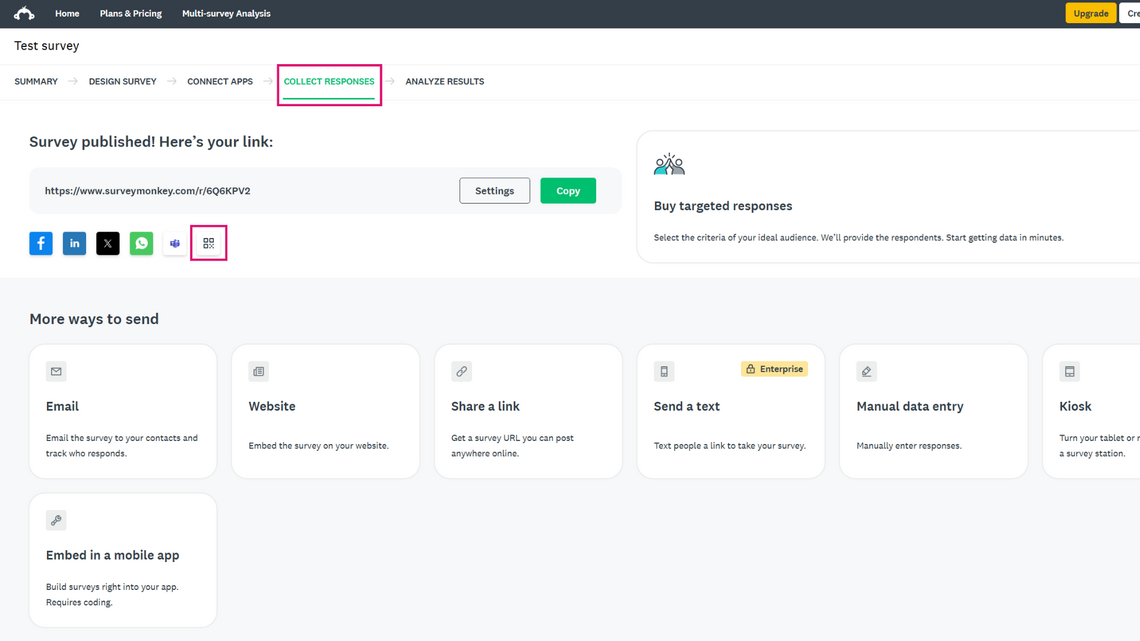
Tools like Microsoft Forms and SurveyMonkey include QR code options, making it easy to share feedback forms.
Microsoft Forms
SurveyMonkey
Third-party tools
Link shortening and tracking services like Bit.ly can create QR codes and track how many times they’re scanned.
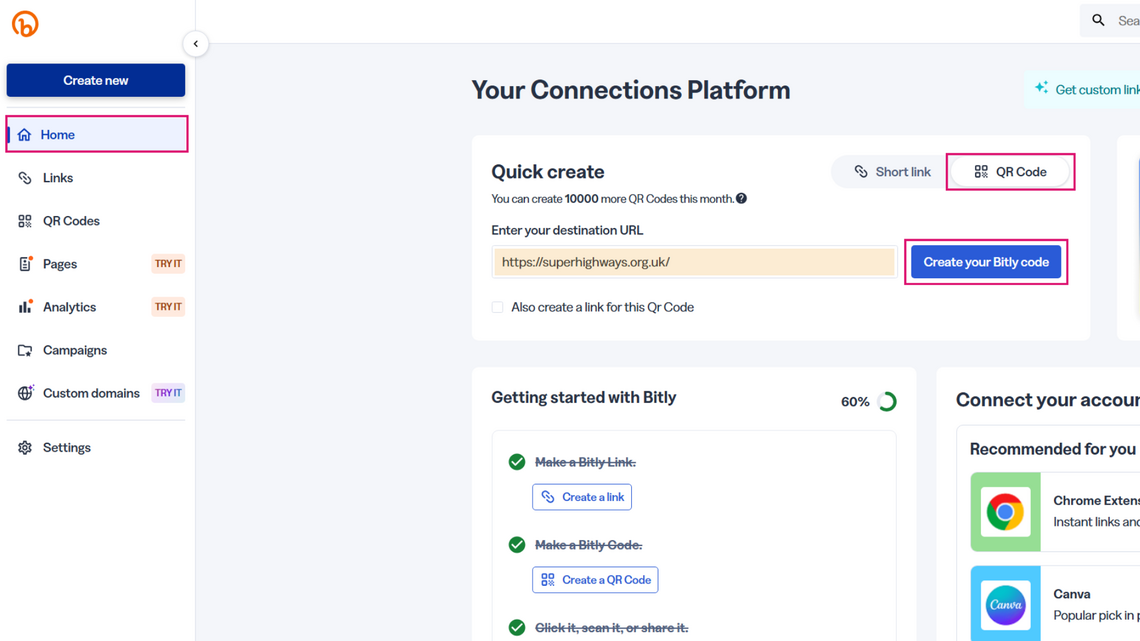
Tracking QR code analytics
Creating a QR code is just the start. Knowing how many people scan it can help you measure engagement. Here’s how Canva and Bit.ly can help:
Canva QR code analytics
Canva’s QR code generator is mainly for design, but if your QR code links to a Canva-hosted design or document, you can view analytics in Canva Pro.
- Go to Share → View analytics to see metrics like views and clicks.
- Tip: If your QR code points to an external site, Canva won’t track scans — combine it with Bit.ly for full analytics.
Bit.ly QR code analytics
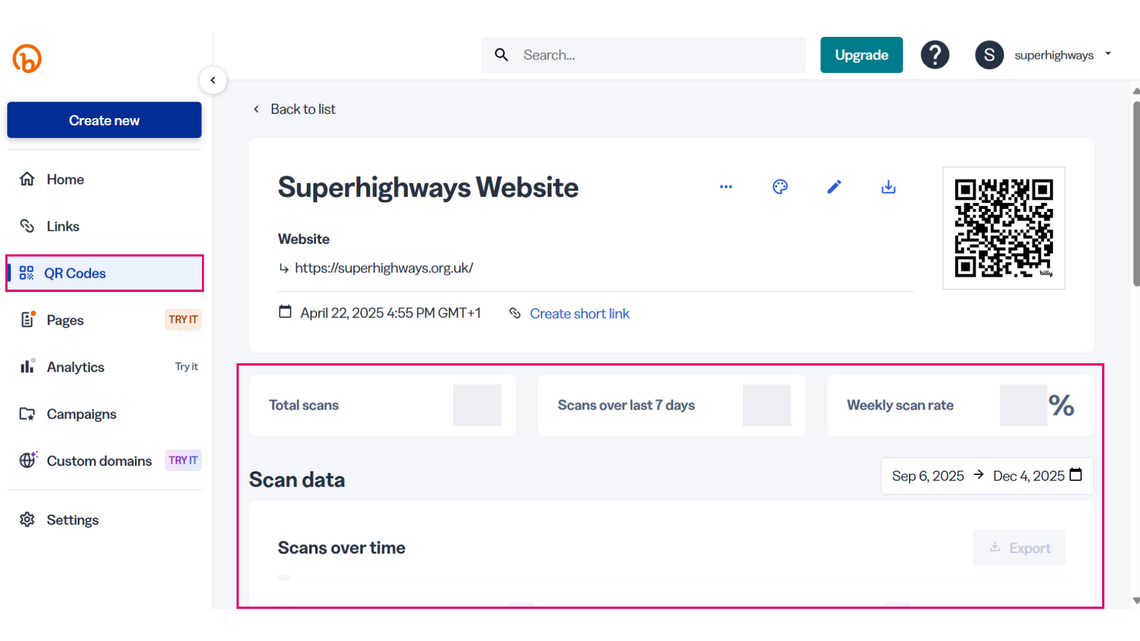
Bit.ly creates QR codes for shortened links and provides detailed tracking.
How to do it:
- Sign in to Bit.ly and create a new link.
- Bit.ly automatically generates a QR code which you can download.
- In your dashboard, view data such as:
-
- Total scans/clicks
- Geographic location
- Device type
- Time of activity
Bit.ly’s free plan includes:
- Up to 2 dynamic QR codes per month
- Up to 5 short links per month
- Unlimited clicks and scans on those links and QR codes
You’ll see basic analytics like total scans, location, and device type.
For advanced features (longer history, campaign filters, CSV exports), you’ll need to upgrade to a paid plan.
Bit.ly paid plans
- Core ($10/£7 / month): added QR Code customisations, 30-day analytics and redirects
- Growth ($29/£22 / month): branded links, custom domain, bulk creation, and better analytics
- Premium ($199/£149 / month): advanced tracking and mobile deep linking
- Enterprise (get in touch): for large teams needing collaboration and API access
Visit their subscription page for further details. Bitly does not currently offer a dedicated nonprofit discount on its paid plans.
Why you need to be careful
QR codes are convenient, but scammers use them too.
A common scam involves sticking fake QR codes over real ones – for example, on car park payment signs. These fake codes take you to fraudulent websites that look genuine but steal your payment details.
QR codes are also increasingly being used in phishing emails, sometimes referred to as Quishing. Read more in this National Cyber Security Centre article.
How to check before you click
Modern phones make scanning easy, but don’t rush. Always check the link before you open it.
On Android
- Use your Camera app or Google Lens to scan.
- A preview of the URL appears – pause and read it.
- Look for typos or strange endings in the web address.
- If unsure, copy the link and paste it into your browser manually
On iPhone
- Open the Camera app and scan the code.
- A banner shows the URL – check it carefully.
- Compare it to the official site before tapping.
- If in doubt, copy and open manually in Safari.
If you have an older phone, your camera app may not automatically scan QR codes. instead, you will need to search your app store for a third-party QR code reader.
Download it and use this when needing to scan a QR code, although please note that this is a less secure solution.
Quick safety tips
- Check the QR code is part of official signage – not a sticker
- Always check the url (web address) before clicking through to a website
- Never enter personal or payment details unless you’re sure the site is genuine
- If something feels wrong, use another payment method or contact the provider
In summary
QR codes are a brilliant way to share information quickly. With built-in browser tools, Microsoft and Google options, Canva for design, and Bit.ly for analytics, creating and tracking them is simple.
Just take a few seconds to check the link before you click; it’s the easiest way to stay safe.
Stay in touch
If you would like to receive news and updates about training, tech tips, resources and opportunities for small charities and community groups in London please sign up to our mailing list.