Updated February 11th 2026
What is Canva?
Canva is an online design tool that helps you create clear, professional materials without needing any design experience.
It’s easy to pick up, works in your web browser and keeps everything you need in one place.
They offer an entirely free Canva for Nonprofits plan for eligible registered charities, giving you Canva Pro features for teams of up to 50 people at no cost.
This resource brings together 10 simple features available for those on the Canva for Nonprofits scheme that can make your day‑to‑day work easier.
1. Templates
Canva’s templates give you a ready‑made starting point so you don’t have to build every design from scratch. You can customise templates with your own text, images and colours.
Simply start a project with your chosen dimensions, then click Design → Templates on the left-hand bar to find one that suits you.
Top Tip: Choose a template with a layout that fits your content from the start.
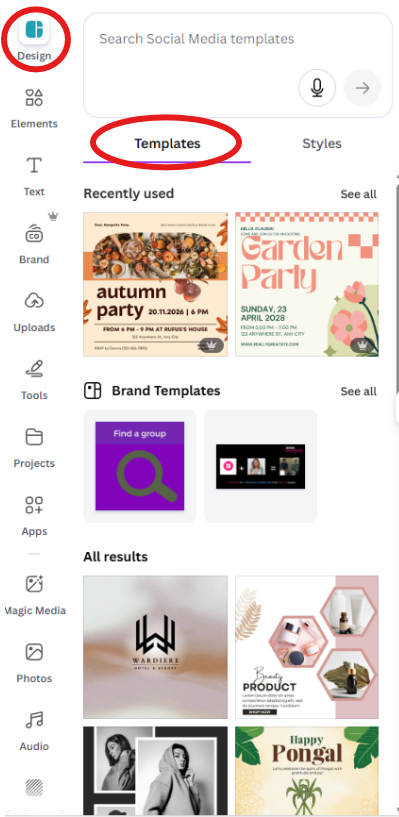
You can also look for templates from the home page when you log into your dashboard.
2. Brand Kit
The Brand Kit helps you keep your organisation’s materials consistent by storing your logos, colours and fonts in one place.
With Canva for Nonprofits, you get an upgraded Brand Kit, allowing you to create multiple colour palettes, upload custom fonts and apply your brand styles across any template.
Top Tip: You should add lighter and darker shades of your brand colours to help Canva AI produce better materials.
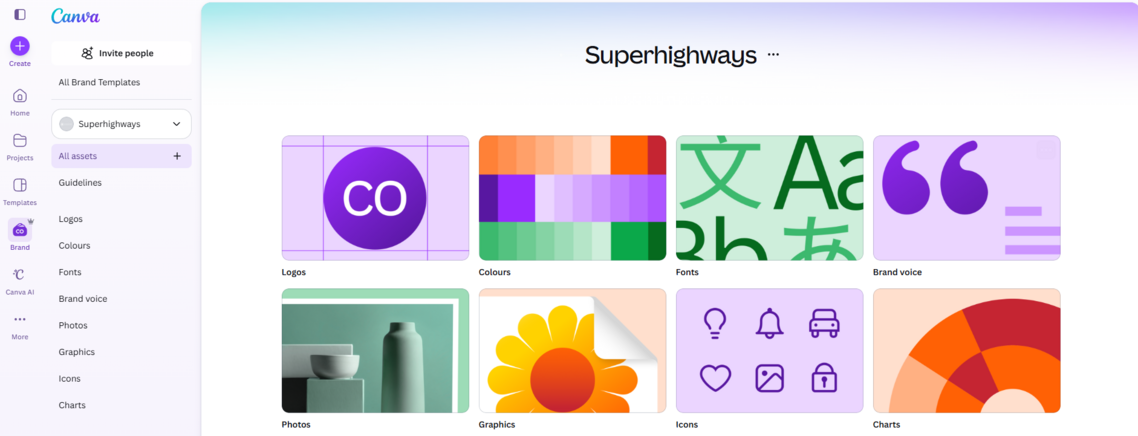
You can access your Brand Kit directly from an open project by clicking Brand on the left-hand bar.
3. "Change all"
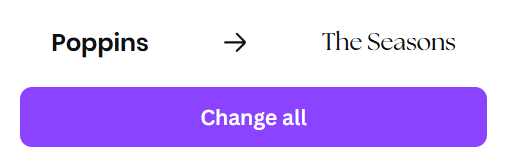
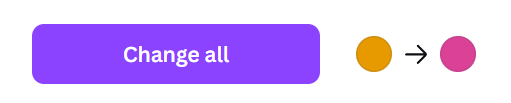
The "Change all" option helps you keep multi‑element designs consistent without editing each element (meaning shapes and text) one by one. It lets you choose a new font, size or colour and roll it out across your whole document in one click.
4. Magic Resize
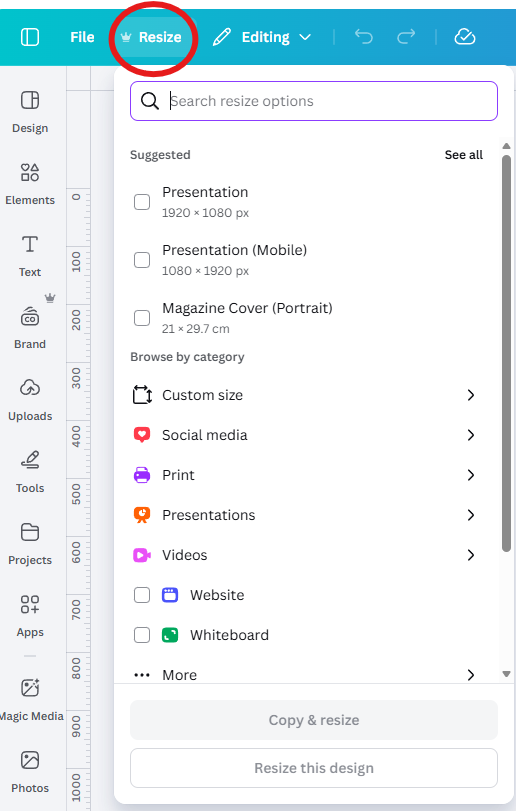
Magic Resize is a Pro/Nonprofits feature that saves you time by turning one design into multiple sizes in just a few clicks.
Instead of recreating a poster, social media post or flyer for each platform, you design once, select the sizes you need and Canva automatically creates correctly sized versions for you.
Top Tip: Use “Resize → Copy & resize” so your current design stays intact while creating a new version.
5. Colour Picker
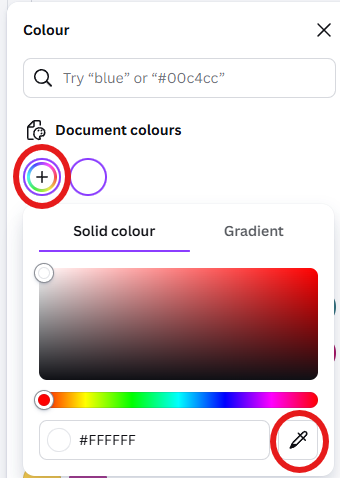
Canva’s Colour Picker (also called the eyedropper tool) lets you match colours directly from any image in your design. It’s useful when you want your text, shapes or backgrounds to coordinate with a photo.
When you click the + sign to add a new colour, the eyedropper option appears and you can hover over any part of your image to select the exact shade you need.
Example: If you are using a free account you can upload your logo to the design and choose the colours so they're easily available to you.
6. Accessibility Checker
Canva includes an Accessibility Checker that helps you spot common issues that could make your designs harder to read.
It highlights things like small text, low colour contrast and missing alternative text (descriptions of photos/graphics for screen readers), and gives simple suggestions to fix them.
You can find it under File → Accessibility. It’s not a full compliance tool, but it’s a useful way to make your graphics more readable and inclusive.
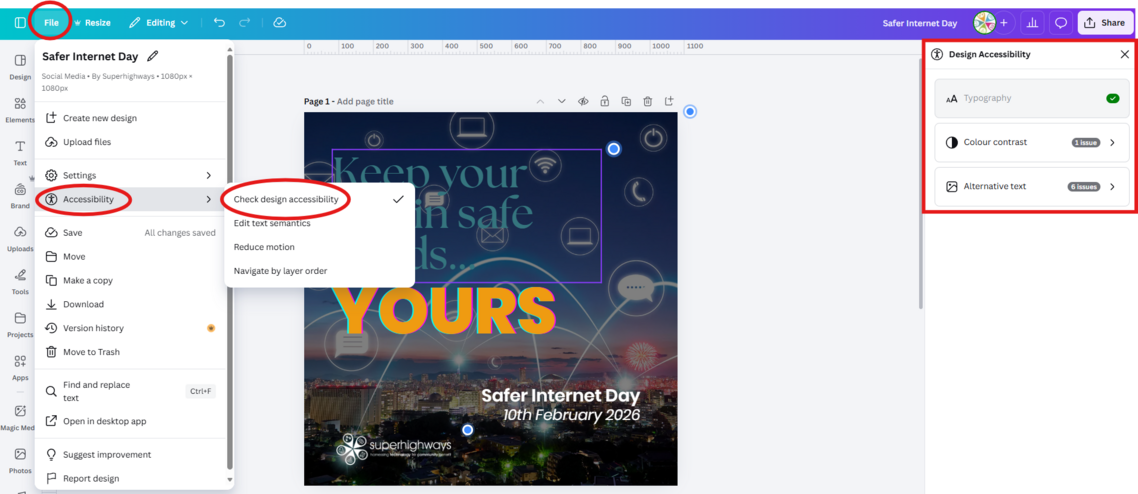
In this example, the Accessibility Checker has pointed out the low contrast of the teal text against the background and missing alt text.
7. Background Remover
Once you select your photo or graphic, the Background Remover lets you remove the background in one click.
It works especially well for headshots, product photos and logos that were originally saved without a transparent background.
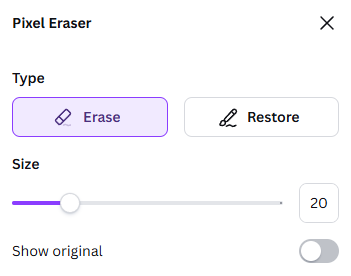
The tool is available to Canva Pro and Canva for Nonprofits users and can be fine‑tuned with erase and restore brushes for more accuracy.

8. QR Codes
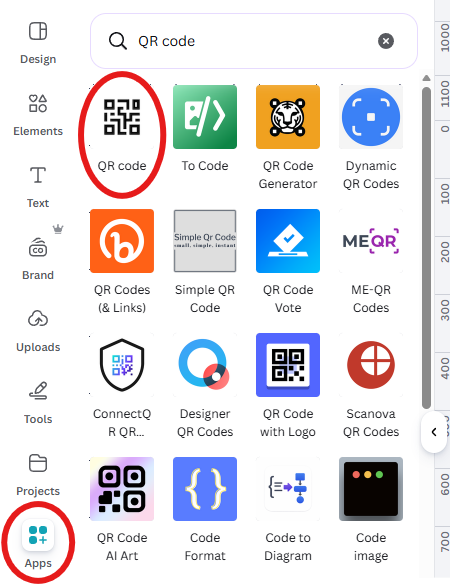
Canva’s QR code generator can be found in the Apps section. The QR codes that are generated are static, so they won't expire and will keep working as long as the link itself stays live.
If you link your QR code to a Canva-hosted link (for example, a public view link to a presentation or webpage you’ve built in Canva), you can also access Canva’s built‑in view analytics for that link, giving you insight into how many people have opened it and when.
See our 'QR codes made simple' resource for more guidance.
9. Public view links
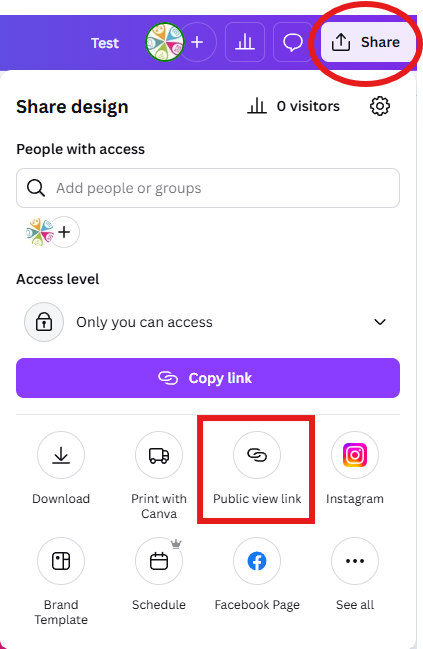
Public view links let you share a design so others can view it without being able to edit anything. They’re useful when you want quick feedback, need to show a draft to colleagues or partners, or want to publish publicly while keeping the original safe.
10. Download settings
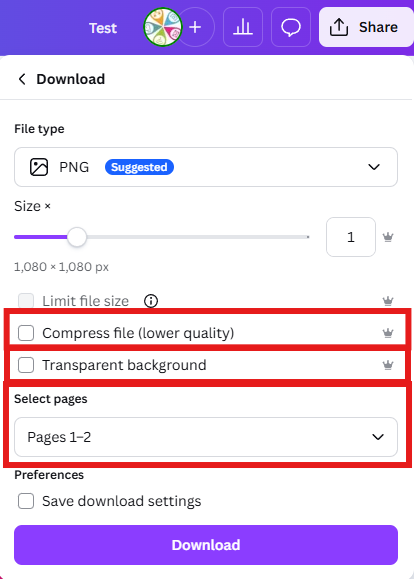
When you’re ready to download your design, Canva gives you options that can help keep file sizes manageable and make your graphics more flexible to use.
Compress file
If you need a smaller PDF for emailing or uploading, use the “Compress file” option. It reduces the size while keeping the quality suitable for most uses.
Transparent background
If you’re downloading a logo or graphic, choose PNG and tick “Transparent background”. This removes the solid box behind your image so it sits cleanly on any colour or layout.
Select pages
For multi‑page designs, you don’t have to export everything. Use “Select pages” to download only the pages you need.
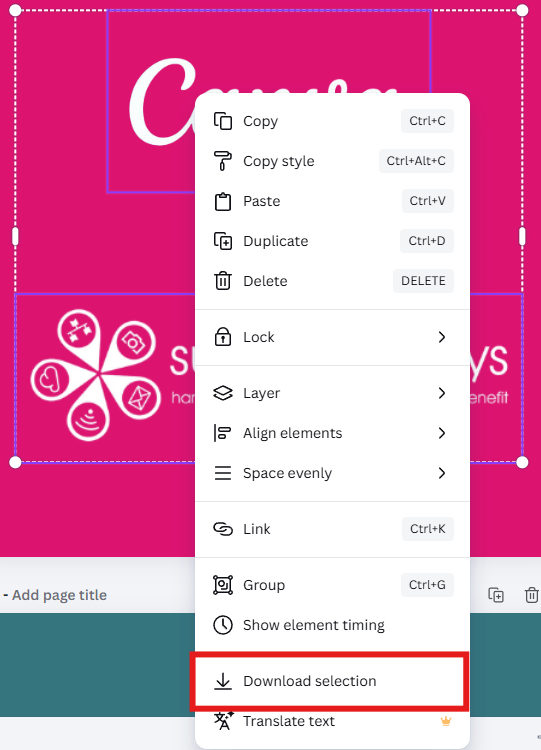
Download selection
To save only certain parts of your design, hold Shift and click each element you want to include. Then right‑click and choose “Download selection”.
Top Tip: You don't have to download the default output that Canva suggests. Select the right file type for your design (PDF, JPG, PNG, MP4, etc).
Bonus: Canva’s AI tools
Canva includes several AI tools that help you work faster. You can generate draft text, translate content, tidy up images and even create new visuals when you don’t have the right photo.
While these tools can save time and cut down repetitive work, it’s still important to have a human in the loop to make sure the content is accurate and appropriate.
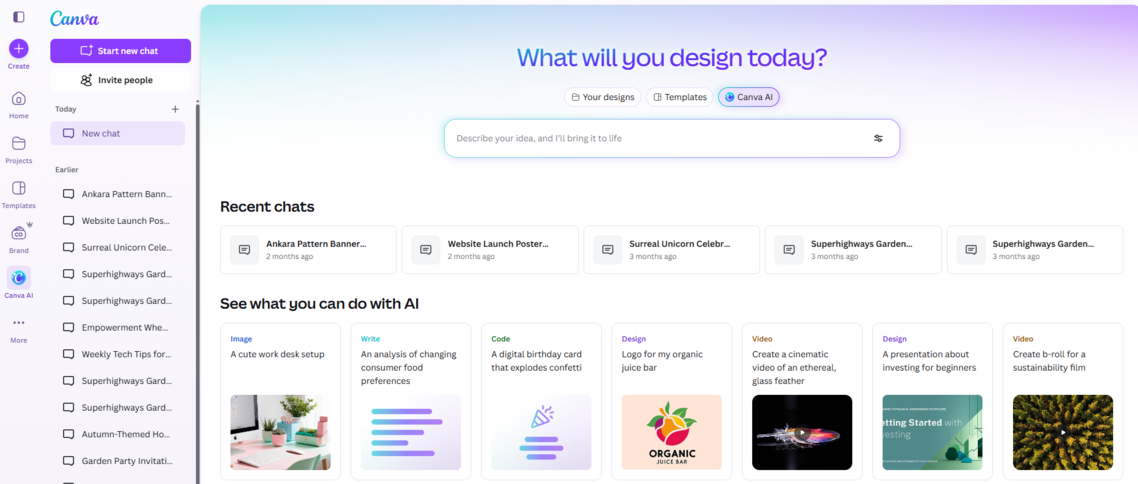
From your open document, you can access Canva's AI through Magic Media or the Search options.
Conclusion
Canva's tools can bring more efficiency to your design work by cutting down the time you spend on small tasks and making it easier to produce consistent materials.
Start with one or two features that feel most useful for your daily work and build from there. Happy designing!
Stay in touch
If you would like to receive news and updates about training, tech tips, resources and opportunities for small charities and community groups in London please sign up to our mailing list.