
This resource uses Mailchimp as an example, but can be applied to other services such as EmailOctopus.
If you are not sure what a domain is, check out our 'Demystifying domains' resource.
Why this matters
When you send emails or newsletters using tools like Mailchimp, EmailOctopus or similar platforms, the message does not come directly from your own email system. It is sent through a third-party service.
Because of this, email providers receiving your email (such as Gmail, Outlook and Yahoo) need to check two things:
- You really own the domain you are using
- The service you are using is allowed to send emails on your behalf
Mailchimp is very clear on this:
- Verification confirms access to your email address
- Authentication proves you are a legitimate sender and improves delivery
Without authentication:
- Emails are more likely to go to spam
- May not be delivered at all
- May appear as coming “via” another domain
Modern email systems rely heavily on this validation. Authentication is no longer optional for reliable delivery.

This is an example error message your recipient might receive if you don’t authenticate your domain for your newletter system (e.g. Mailchimp).
The difference between verification and authentication
This distinction is important.
Domain verification
This is a simple check.
- Mailchimp sends a verification email
- You confirm that you have access to that inbox
What it does:
✔ Allows you to send emails
What it does NOT do:
✘ Improve deliverability
Mailchimp specifically notes that verification alone does not affect inbox delivery.
Domain authentication
This is the key step.
It involves adding records to your domain (DNS):
- SPF – confirms who is allowed to send
- DKIM – confirms the email has not been altered
- DMARC – tells providers what to do if checks fail
Together, these act like a digital ID system for your emails.
What it does:
✔ Improves inbox delivery
✔ Builds trust with email providers
✔ Prevents spoofing (people pretending to be you)
How the process works (in simple terms)
- You add your domain in Mailchimp
- You verify access to an email address
- Mailchimp gives you DNS records
- You add these to your DNS via your domain provider
- Mailchimp checks them and confirms authentication
That is it. It is a one-off setup taking around 10-15 minutes.
Example walkthrough using real screenshots
Below is a real example showing each step.
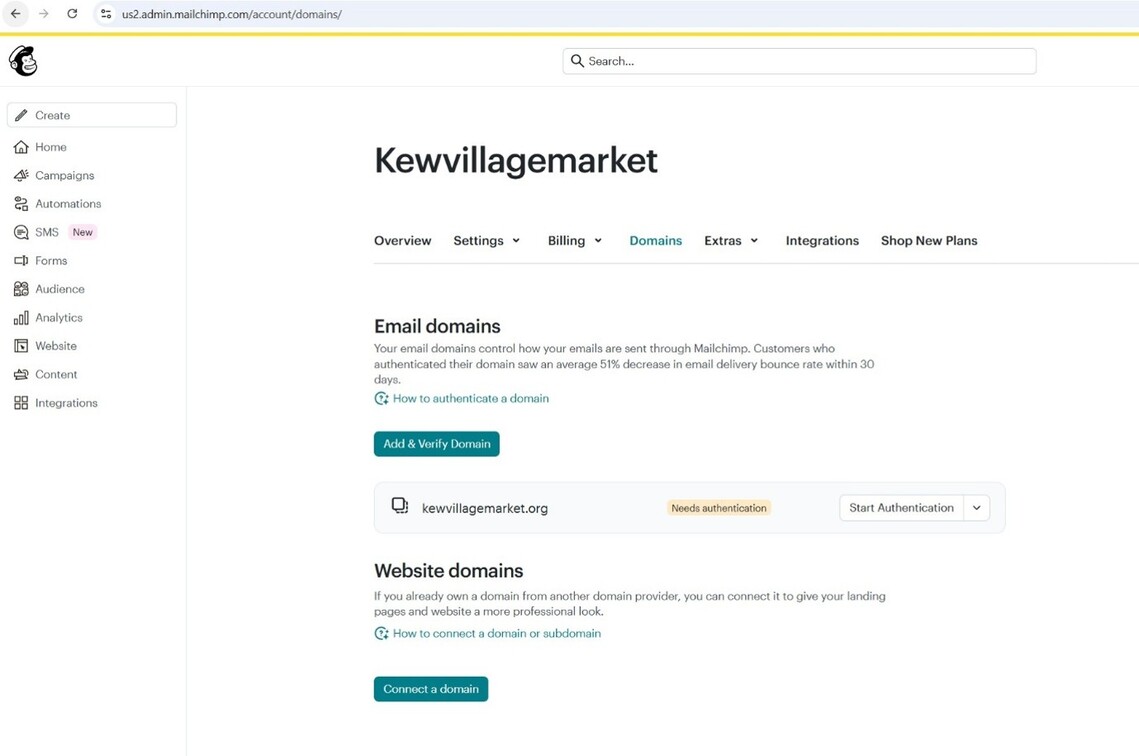
Step 1: Go to your domains area and add your domain
In Mailchimp, go to:
- Account
- Domains
You will see your domain listed and a button to begin setup.
What to look for:
- Your domain name, as an example we are using kewvillagemarket.org
- A status such as Needs authentication
- A button to start the process
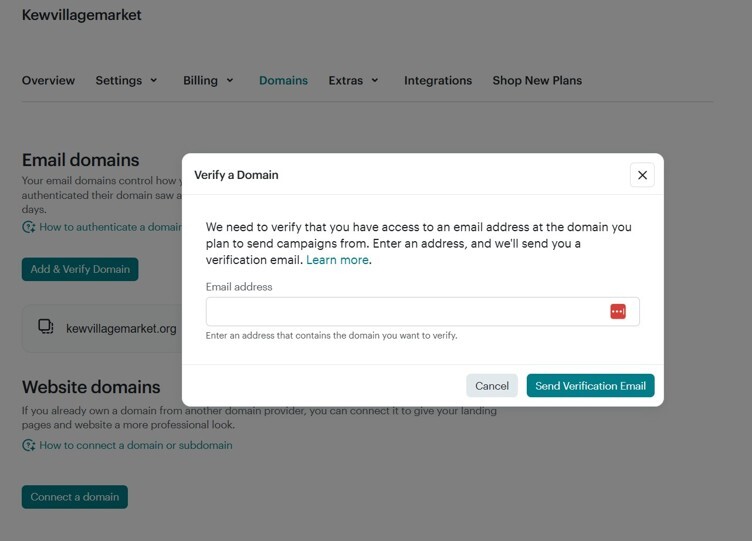
Step 2: Verify that you own the domain
Mailchimp will ask you to enter an email address linked to your domain.
What you do here:
- Enter an address such as info@yourdomain.org
- Click Send Verification Email
- Open the email and confirm
This step matters as it proves you control the domain before you are allowed to send.
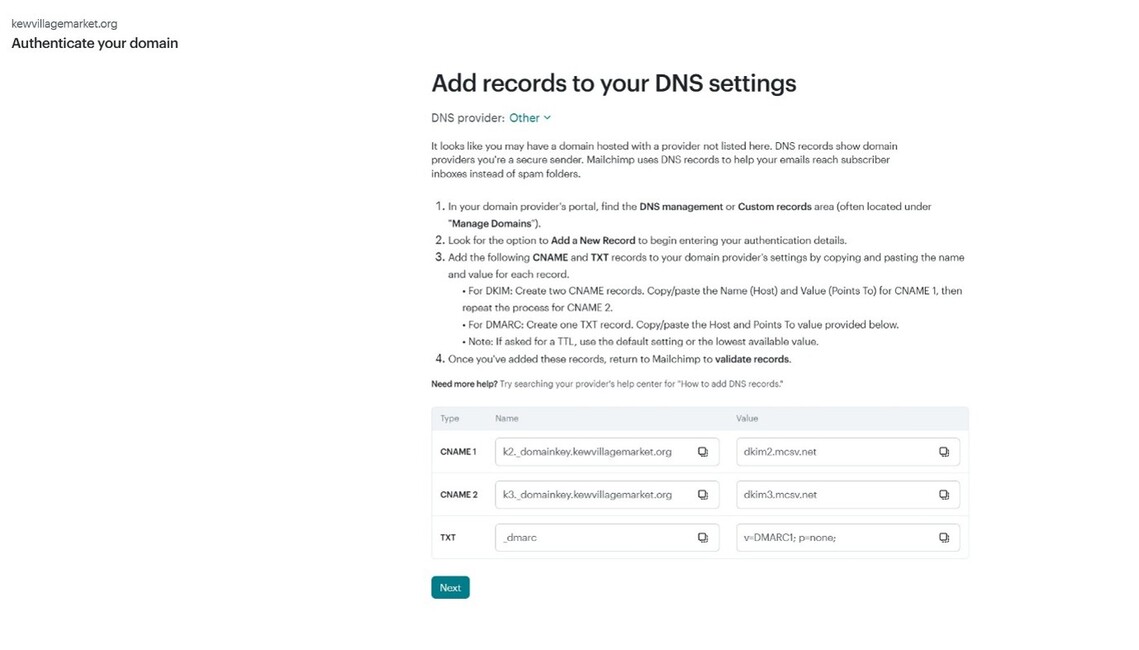
Step 3: Start authentication and get your DNS records
Once verified, Mailchimp shows instructions titled something like: “Add records to your DNS settings”.
This is the most important screen.
What you will see:
- CNAME records (for DKIM)
- A TXT record (for DMARC)
For example:
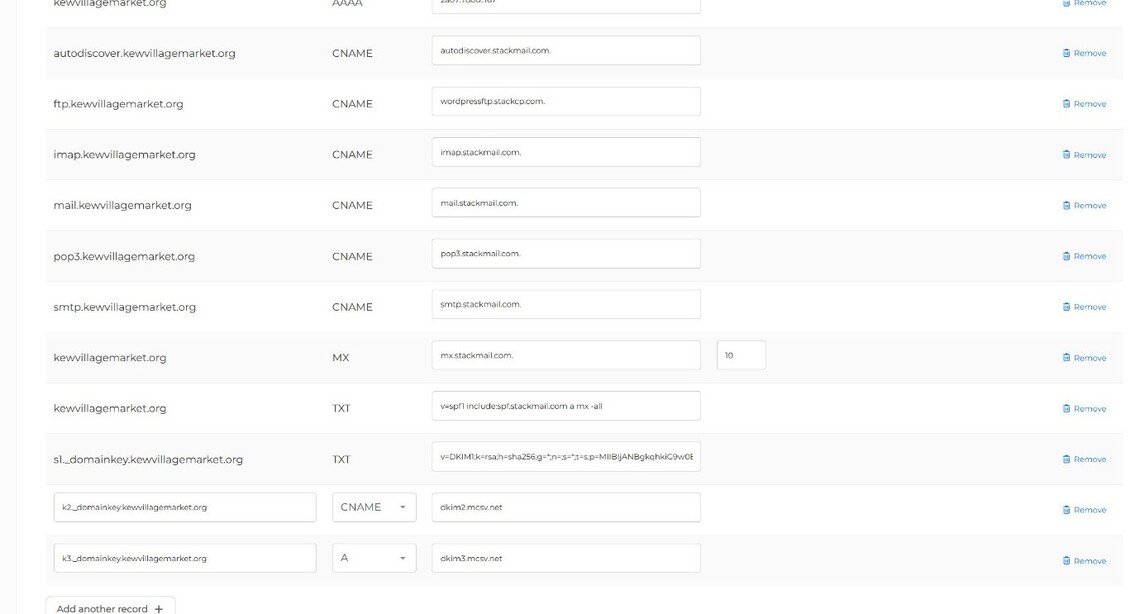
• CNAME → k2._domainkey... → dkim2.mcsv.net
• CNAME → k3._domainkey... → dkim3.mcsv.net
• TXT → _dmarc → v=DMARC1; p=none;
What to do:
- Copy these exactly.
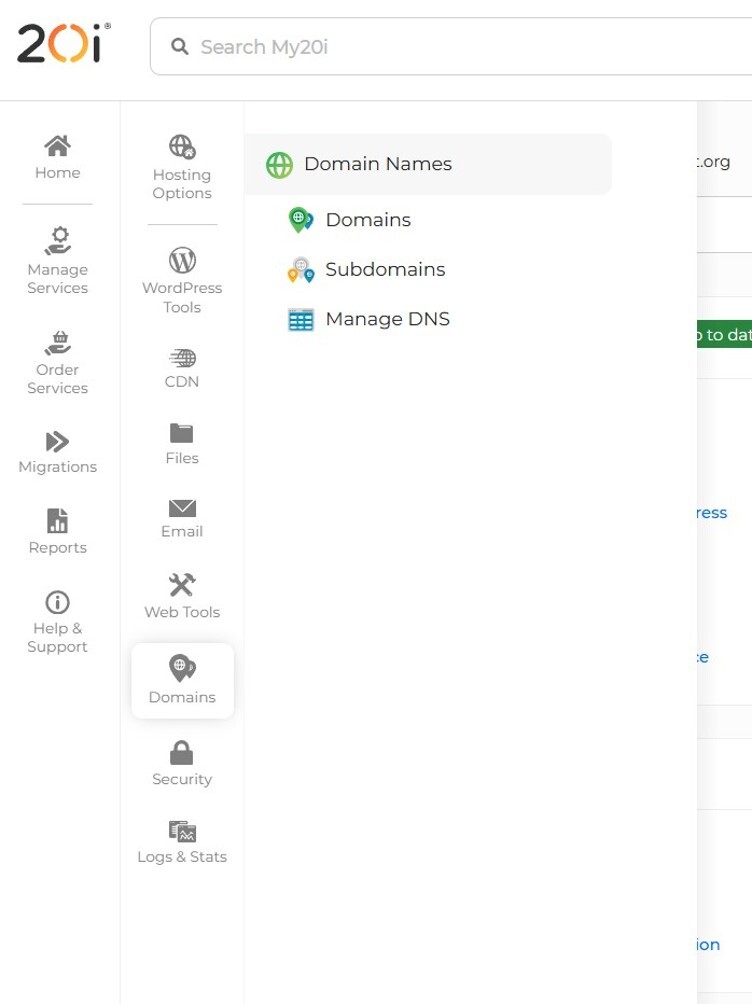
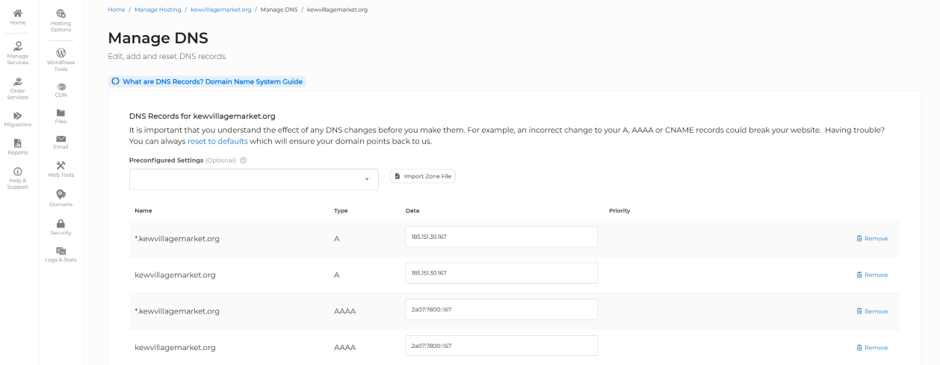
Step 4: Open your domain provider and access DNS settings
Now go to the system where your domain is managed (typically, 123Reg, GoDaddy, IONOS, 20i etc.).
In our example (20i), this is:
- Domains
- Manage DNS
What to look for:
- DNS settings or DNS management
- A list of existing records
Step 5: Add the DNS records
This is where many people get unsure, but it is straightforward.
For each record from Mailchimp:
- Select the correct type (CNAME or TXT)
- Paste the Name
- Paste the Value
- Save
Important points:
- Do not delete existing records
- Copy values exactly
- Small errors/typos will prevent verification
The screenshot below shows:
- Some existing records (A, MX, email settings)
- New Mailchimp CNAME records being added
Step 6: Return to Mailchimp and complete authentication
After adding your records:
- Go back to Mailchimp
- Click to validate or continue
If everything is correct, you will see confirmation.
Final result from example:
“Your domain is authenticated! Your emails will now flow freely into your customer’s inboxes.”

Common issues
- DNS changes can take time (often minutes, but sometimes longer)
- Records not copied exactly
- Adding them in the wrong DNS provider (you need to add them where your Domain is controlled – the nameserver settings will confirm this)
If it fails at first, wait and try again.
Final takeaway
- Verification lets you send emails.
- Authentication makes sure they arrive.
Mailchimp and other platforms all follow the same principle.
Once this is set up, it quietly works in the background and makes a noticeable difference to whether your emails reach people.
References
“About Email Authentication.” Mailchimp, https://mailchimp.com/help/about-email-authentication/.
“SPF, DKIM, and DMARC Explained.” Mailchimp, https://mailchimp.com/solutions/spf-dkim-dmarc/.
Stay in touch
If you would like to receive news and updates about training, tech tips, resources and opportunities for small charities and community groups in London please sign up to our mailing list.